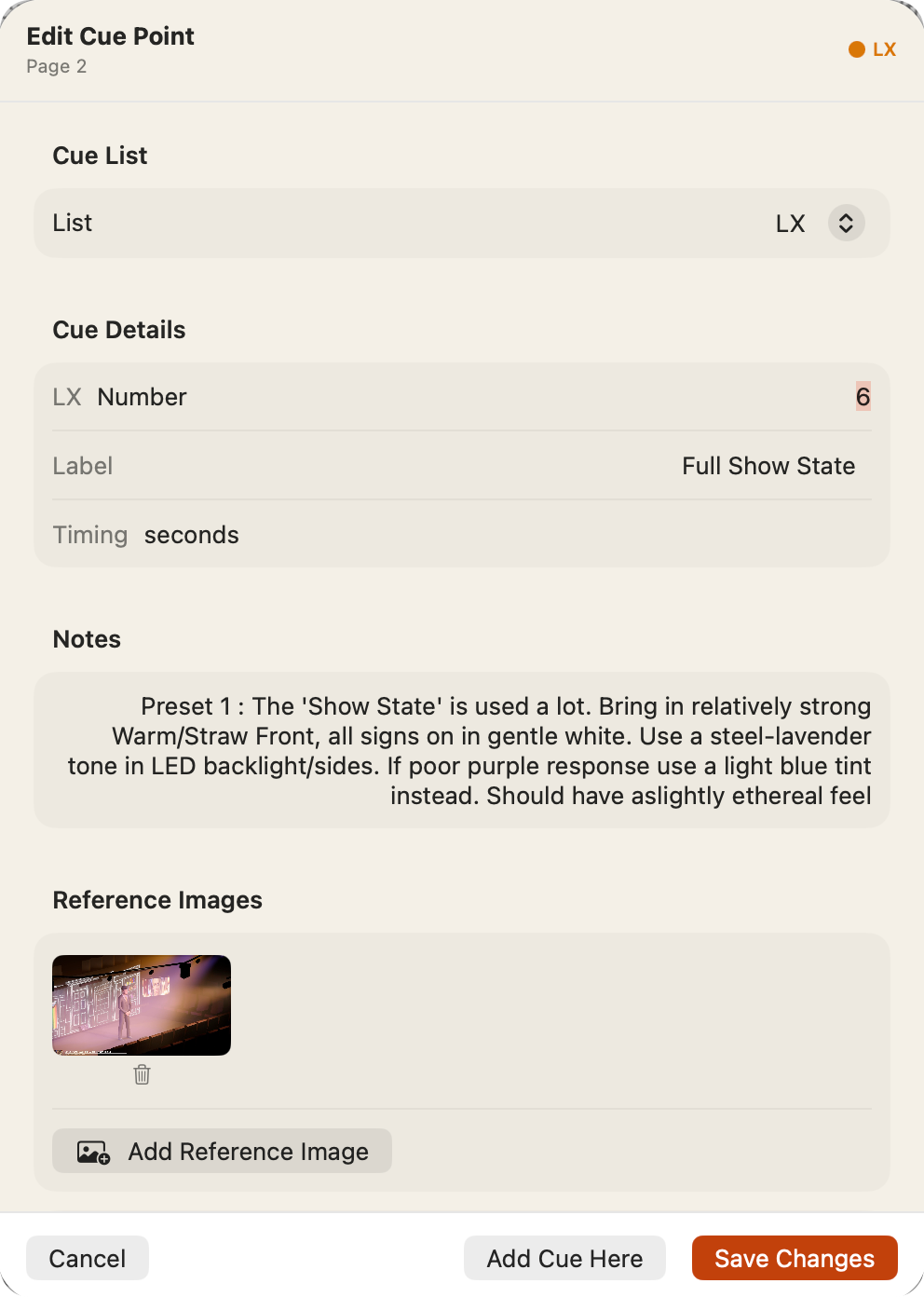
The cue details screen
Here you can change which list the cue is for (if you forgot to select the correct cue list first), and set the number, label and other details.
The screen opens as soon as you place a cue (unless you've set new cues to be created without it). It has:
- Cue List: which list the cue belongs to. Change it here if you forgot to pick the right pill first.
- Number and Label: what the cue is called on the page and in the Cue Sheet.
- State: only for on/off lists (see Cue Lists & Layers).
- Timing: the cue's time in seconds, if you want it on record and/or for EOS/CSV Export.
- Notes: anything the department needs to know.
- Add Reference Images: photos of the state, the set, the moment.
To open it again later, double-click the cue, or right-click it (long-press on iPad) and choose Edit Details. Delete Cue Point is at the bottom.
How cue numbers are suggested
Promptbook numbers a cue placed after the previous one automatically, adding 1 by default. You can change this for each list in its Settings (Script Settings ▸ Cues & Notes, then the pencil next to the list). If you insert a cue between existing cues, it suggests a point cue number.
When you put a cue between two others, Promptbook suggests the tidiest number that fits:
| Cues either side | Suggested |
|---|---|
| 10 and 30 (interval 10) | 20 |
| 1.5 and 2.5 | 2 |
| 1 and 2 | 1.5 |
| 1 and 1.5 | 1.1 |
| before 30 (interval 10) | 20 |
You can always type your own number instead. The renumber tool in the top toolbar allows you to batch renumber, renumber from a certain point or click to renumber with any interval. You can also renumber from the Cue Sheet.
Several cues in one place
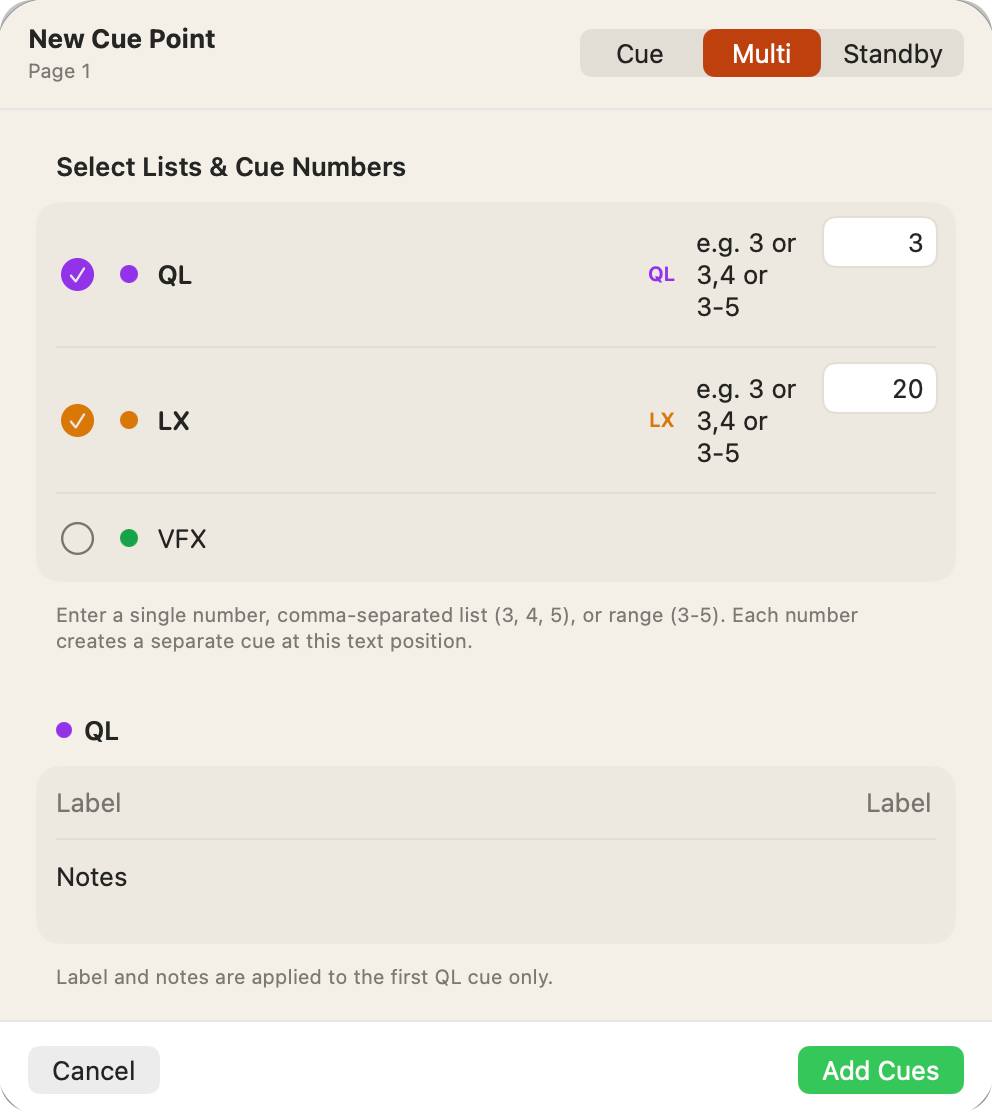
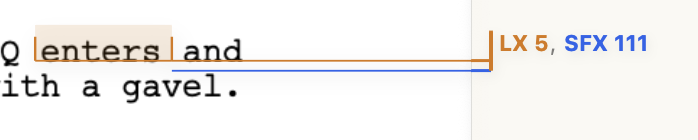
If you want to place multiple cues at the same position (e.g. LX5 / SFX11), click Multi at the top. This lets you create multiple cues within the same list or across all available cue lists.
- Place the cue as normal, then choose Multi at the top of the screen.
- Under Select Lists & Cue Numbers, tick each list and type its number. You can type several:
3,3,4or3-5. - Save. Each number becomes its own cue at the same spot.
The label and notes go on the first cue of each list only.
Tip: To add another cue at a cue you've already placed, open it and choose Add Cue Here.