Editing a cue
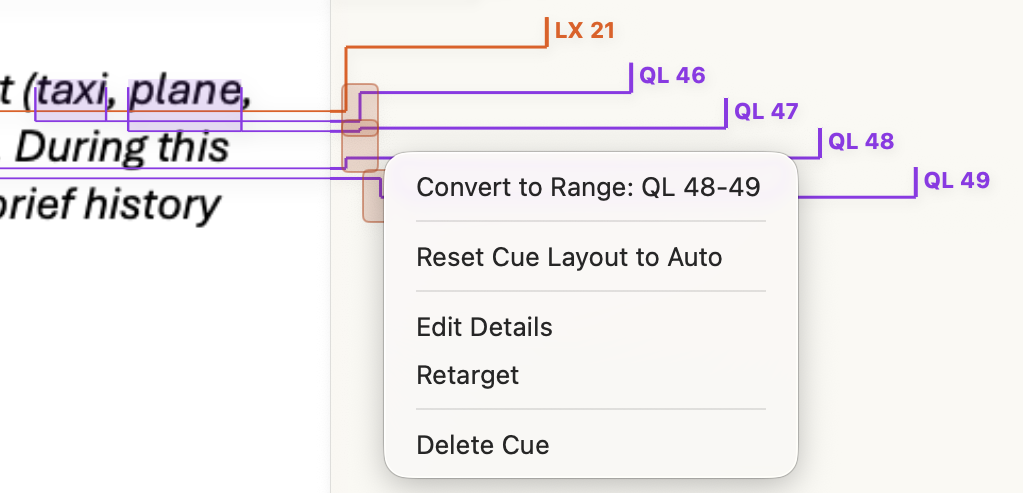
Right-click a cue (long-press on iPad) for its menu:
- Edit Details opens the cue's details: number, label, notes and the rest.
- Retarget moves the cue onto a different piece of text: choose it, drag across the new words (or tap for a point cue, or tap the score on a score page), then click Done in the banner at the top.
- Move to Page… (score pages) sends the cue to another page.
- Delete Cue removes it.
Where cues share a spot, the menu has two more:
- Convert to Range draws a run of consecutive cues from one list as a single label, such as QL 48-49. Expand Range shows them separately again.
- Reset Cue Layout to Auto undoes any arranging by hand (see below).
Double-clicking a cue also opens its details.
Moving a cue
- Change a range cue's words: drag either end of it.
- Move a point cue: drag it along the line.
Mac: hold Shift while you drag to place it freely, off the lines.
iPad: point cues move freely as you drag.
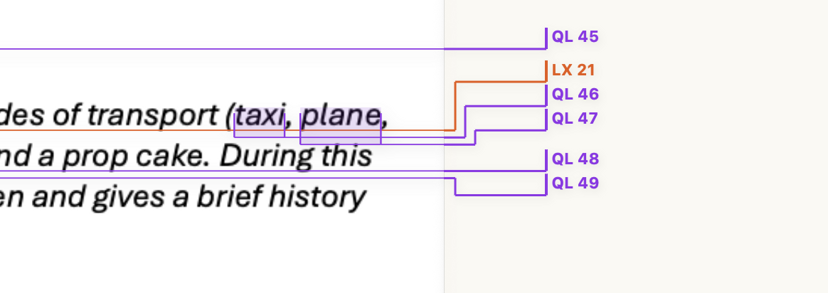
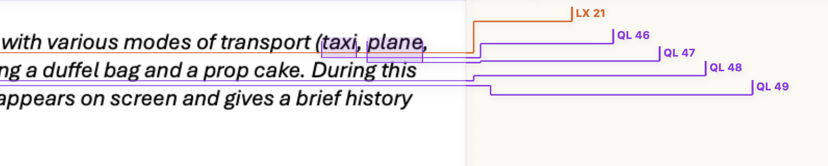
When a line gets crowded, right-click the cues and choose Arrange These Cues by Hand to space them yourself. Reset Cue Layout to Auto puts them back.
Deleting a cue
Right-click the cue (long-press on iPad) and choose Delete Cue, then confirm.
Changed your mind? Undo brings it straight back.
Mac: ⌘Z to undo, ⇧⌘Z to redo.
iPad: tap with two fingers to undo, three fingers to redo, or ⌘Z on a keyboard.
Renumbering a list
After a tech a list is often full of point cues: 12, 12.5, 12.7, 13. When you want clean numbers again, click Renumber in the toolbar, choose the cue list, and pick a mode:
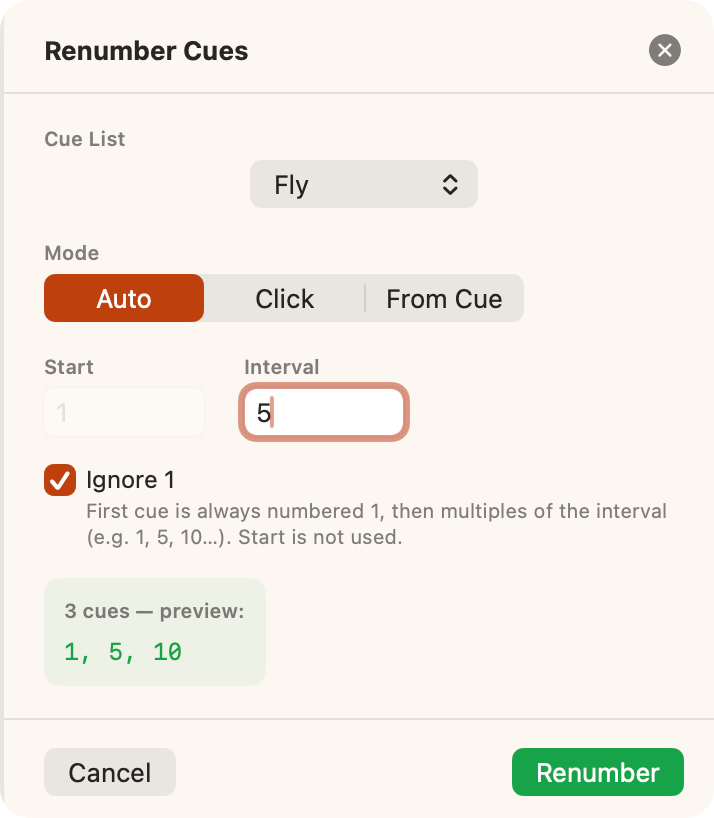
- Auto renumbers the whole list in page order, from a Start number going up by an Interval (with Ignore 1 if you like). You see a preview before you commit.
- Click lets you tap cues on the script one at a time to give them the next number. If a number's already taken, the cue that has it gets a suffix so nothing clashes.
- From Cue: tap a cue, it takes the Start number, and every cue after it in the list is renumbered by the interval.